Data Import
Overview
The Data Import page allows you to upload and integrate external data into the system. This guide will walk you through the main sections and features of the page.
Excel import (Companies and Locations)
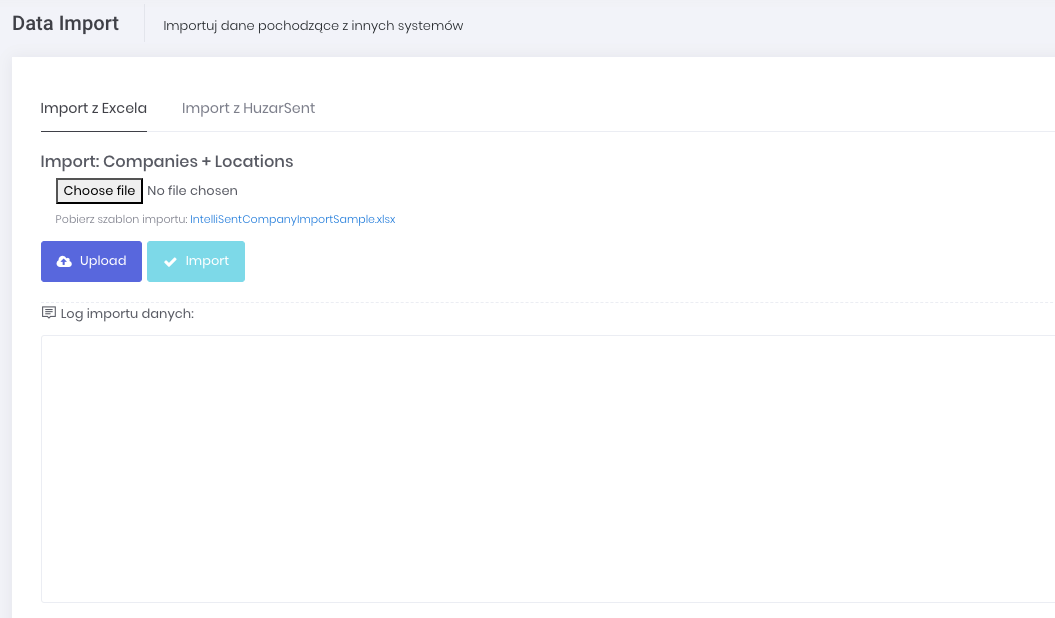
Preparing Data
Download the provided Excel template (or google sheet) file and fill in the necessary information according to the specified format. Make sure to follow the guidelines for each data field to ensure successful import.

Column | Header | Description |
|---|---|---|
A | Code | Unique company identifier or shorthand code |
B | EmailAddress | Company's primary email address |
C | Name | Official company or branch name |
D | PhoneNumber | Company's main telephone number |
E | MobileNumber | Company's mobile contact number |
F | TraderIdentityType | Classification of the business entity type |
G | TraderIdentityNumber | Official business registration or tax ID number |
H | IdSisc | PUESC SISC identifier |
I | IsCarrier | Boolean indicating if the company provides carrier services |
J | IsRecipient | Boolean indicating if the company receives goods |
K | IsSender | Boolean indicating if the company sends goods |
L | ShouldNotifyByEmail | Boolean for email notification preferences |
M | City | City where the company/branch is located |
N | CountryCode | Two-letter country code of the company's location |
O | PostalCode | Postal/zip code of the company's address |
P | Street | Street name of the company's address |
Q | HouseNumber | Building number of the company's location |
R | FlatNumber | Suite, unit, or apartment number (if applicable) |
S | Voivodeship | Polish province where the company is located |
T | IsActive | Boolean indicating if the company account is active (use 1 to indicate is active) |
U | ExtensionData | Field for additional or custom data (leave empty) |
V | LatLon | Geographical coordinates of the company's location (e.g. 51.229839,18.583717) |
Example:
Code | EmailAddress | Name | PhoneNumber | MobileNumber | TraderIdentityType | TraderIdentityNumber | IdSisc | IsCarrier | IsRecipient | IsSender | ShouldNotifyByEmail | City | CountryCode | PostalCode | Street | HouseNumber | FlatNumber | Voivodeship | IsActive | ExtensionData | LatLon |
|---|---|---|---|---|---|---|---|---|---|---|---|---|---|---|---|---|---|---|---|---|---|
PL001 | info@kowalskisp.pl | Kowalski Spółka z o.o. | +48 22 123 4567 | +48 601 234 567 | 0 | 1234567890 | PL111111111100000 | 1 | 1 | 1 | 1 | Warsaw | PL | 00-001 | Marszałkowska | 126 | Masovian | 1 | {"founded": "1995"} | 52.2297,21.0122 | |
PL002 | kontakt@nowaktrans.pl | Nowak Transport | +48 12 987 6543 | +48 602 345 678 | 0 | 0987654321 | PL111111111200000 | 1 | 0 | 1 | 1 | Kraków | PL | 30-001 | Floriańska | 35 | Lesser Poland | 1 | {"fleet_size": "20"} | 50.0647,19.9450 | |
PL003 | biuro@wisniewski.com | Wiśniewski i Wspólnicy | +48 58 876 5432 | +48 603 456 789 | 0 | 2468101214 | PL111111111300000 | 0 | 1 | 0 | 0 | Gdańsk | PL | 80-001 | Długa | 8 | 3 | Pomeranian | 1 | {"partners": "3"} | 54.3520,18.6466 |
DE001 | info@schmidtgmbh.de | Schmidt GmbH | +49 30 9876 5432 | +49 170 123 4567 | 0 | DE987654321 | PL111111111400000 | 1 | 1 | 1 | 1 | Berlin | DE | 10115 | Friedrichstraße | 185 | 1 | {"branches": "5"} | 52.5200,13.4050 | ||
PL004 | sklep@dabrowski.pl | Dąbrowski Sklep Spożywczy | +48 32 765 4321 | +48 604 567 890 | 0 | 1357924680 | PL111111111500000 | 0 | 1 | 0 | 1 | Katowice | PL | 40-001 | Warszawska | 5 | Silesian | 1 | {"employees": "10"} | 50.2649,19.0238 |
Importing Data
Navigate to Import menu item
Click on the "Upload" button
Select the prepared Excel file from your local storage
Click "Import" to start the process and wait for the confirmation message
Huzar HuzarSent v2 import (Companies and Locations)
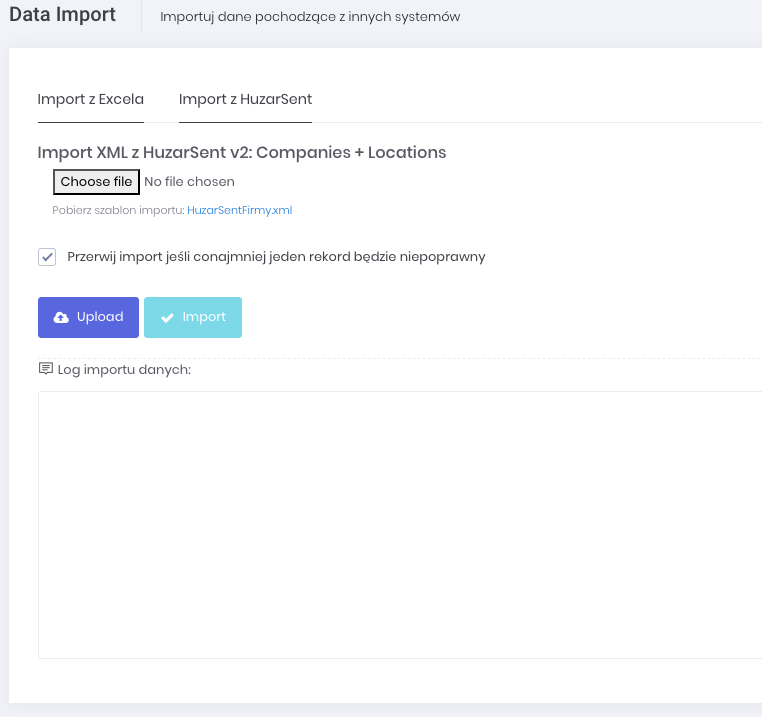
Open large image in a new tab.
Preparing Data
Export the HuzarSent data export file in XML format.
Importing Data
Navigate to Import menu item
Click on the "Upload" button
Select the prepared XML file from your local storage
Click "Import" to start the process and wait for the confirmation message