Transport
Overview
The Transport page allows you to create and manage shipment details for your logistics operations. This guide will walk you through the main sections and features of the page.
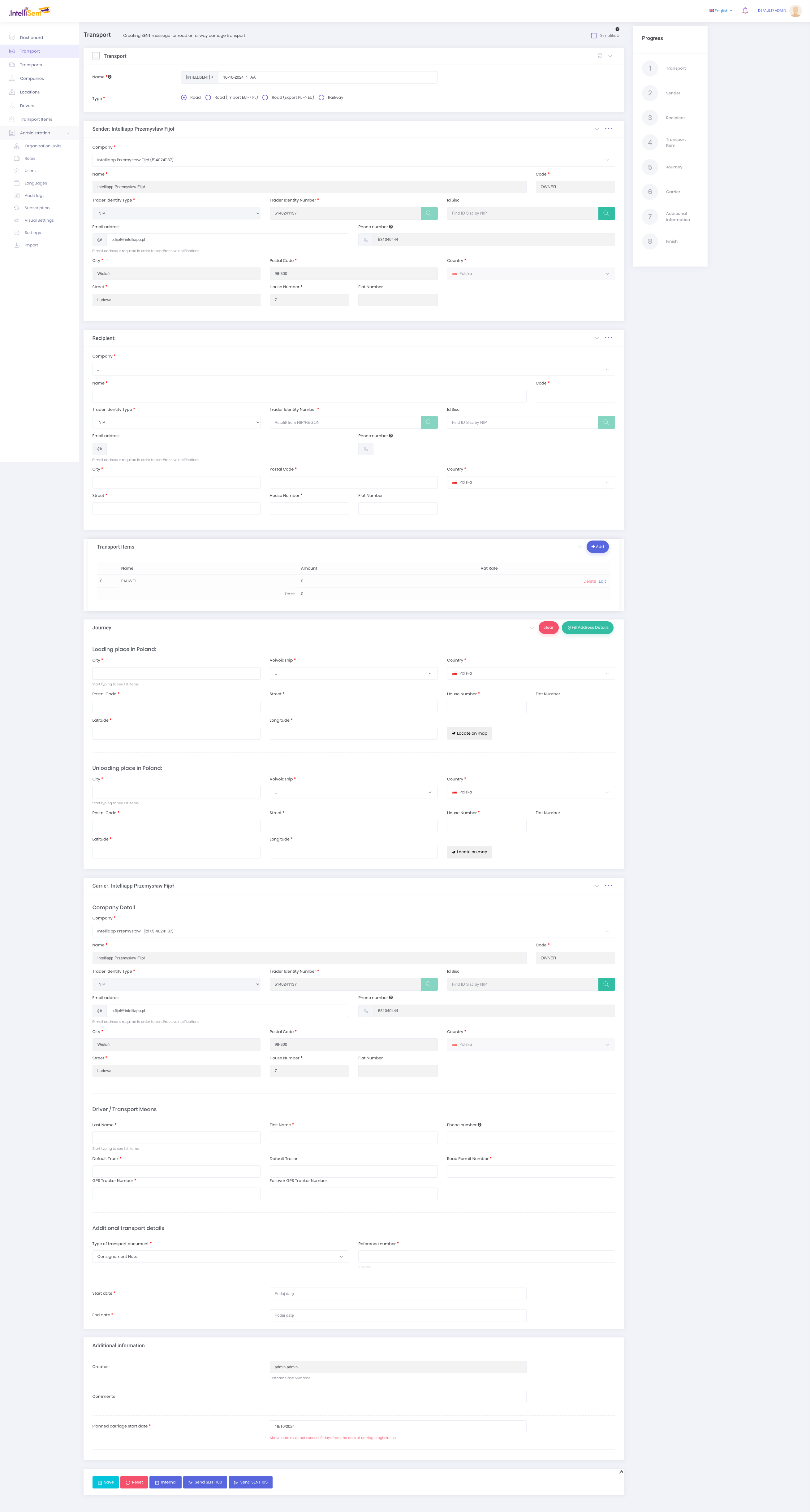
Open large image in a new tab.
Screencasts
Creating SENT100 - notification in less than 20 seconds using enhanced view 🚀
Creating SENT105
Top Transport Section
Transport Type
Select the appropriate transport type from using the radio buttons provided:
Road: To create SENT 100 SENT 105 SENT 106 SENT 120 notifications (use simplified checkbox to show simple SENT100 form without carrier information)
Road (Import EU -> PL): To create SENT 200 and SENT 205 notifications
Road (Export PL -> EU): To create SENT 100 and SENT 105 notifications
Railway: To create SENT 137 and SENT 100 notifications
Simplified Checkbox
Check this box if you want to use a simplified version of the form for sending SENT 100 notifications (hides certain advanced fields around carrier)
Main Sections
1. Sender Information
Company Name: Enter the name of the sending company
Address: Provide the full pickup address
Contact Person: Name of the primary contact at the pickup location
Pickup Date/Time: Use the calendar and time picker to set the collection schedule
2. Recipient Information
Similar to Sender Information, but for the delivery destination
Delivery Date/Time: Set the expected delivery schedule
3. Transport Notes
Add any special instructions or notes relevant to this shipment
4. Shipment Details
Loading Place: Specific location for goods pickup
Unloading Place: Specific location for goods delivery
Goods Type: Select from predefined options or enter custom type
Weight/Volume: Enter the shipment's weight and volume
5. Carrier Information
Company Name: The transport company handling the shipment
Vehicle Type: Select the appropriate vehicle for the goods
License Plate: Enter the vehicle's license plate number
Driver Details: Provide driver's name and contact information
6. Additional Transport Details
Customs Information: Enter any relevant customs data
Reference Numbers: Add internal or external reference codes
7. Additional Information
Use this free-text field for any extra notes or instructions
Key Features
Dropdown Menus: Use these for standardized input where available
Date and Time Pickers: Ensure accurate scheduling
Add Buttons: Click to include multiple pickup or delivery locations
Action Buttons:
Save: Store the current transport entryCancel: Discard changes and exit the formOther buttons may perform specific actions (refer to your system's capabilities)
Tips for Efficient Use
Fill out sections in order from top to bottom
Use tab key to navigate between fields quickly
Utilize dropdown menus and pickers for faster, standardized data entry
Save your work periodically, especially for complex shipments
Double-check all entries before final submission
Need Help?
If you encounter any issues or have questions, please contact your system administrator or refer to the extended user manual for more detailed information.