User Menu
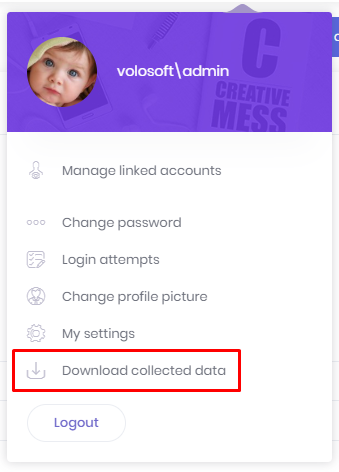
A user can click his name at top right corner to open user menu:

Linked Accounts
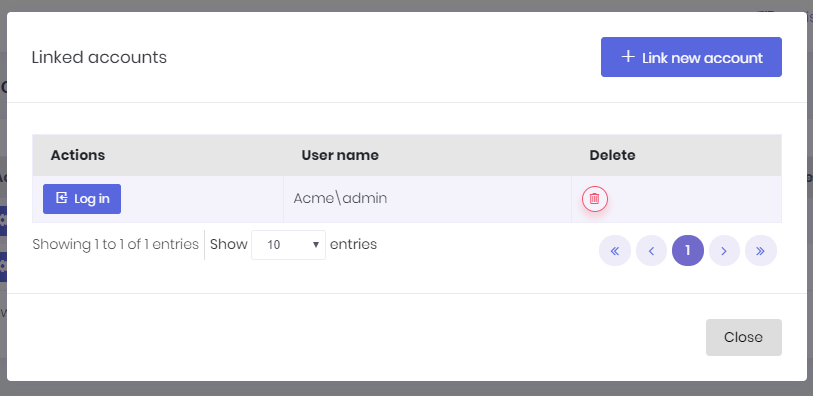
Linked accounts are used to link multiple accounts to each other. In this way, a user can easily navigate through his accounts using this feature.
User can link new accounts or delete already linked accounts by clicking the Manage accounts link.
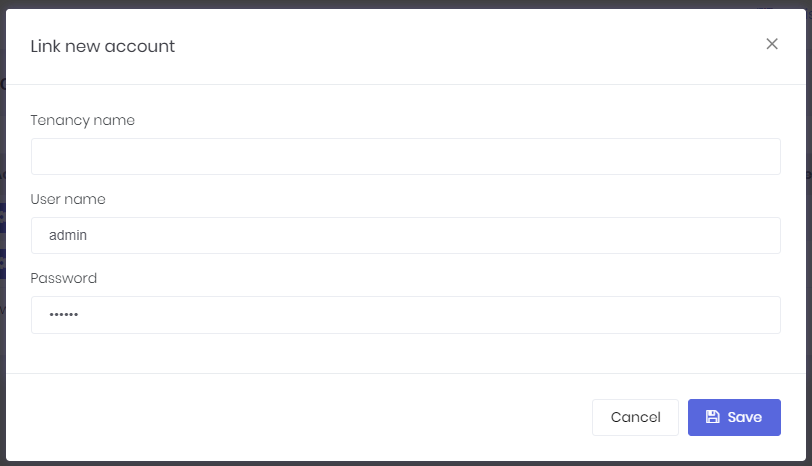
In order to link a new account, user must enter login credentials of related account.
Change Password
User can change the password using this option. ProfileAppService is used to change password.
Login Attempts
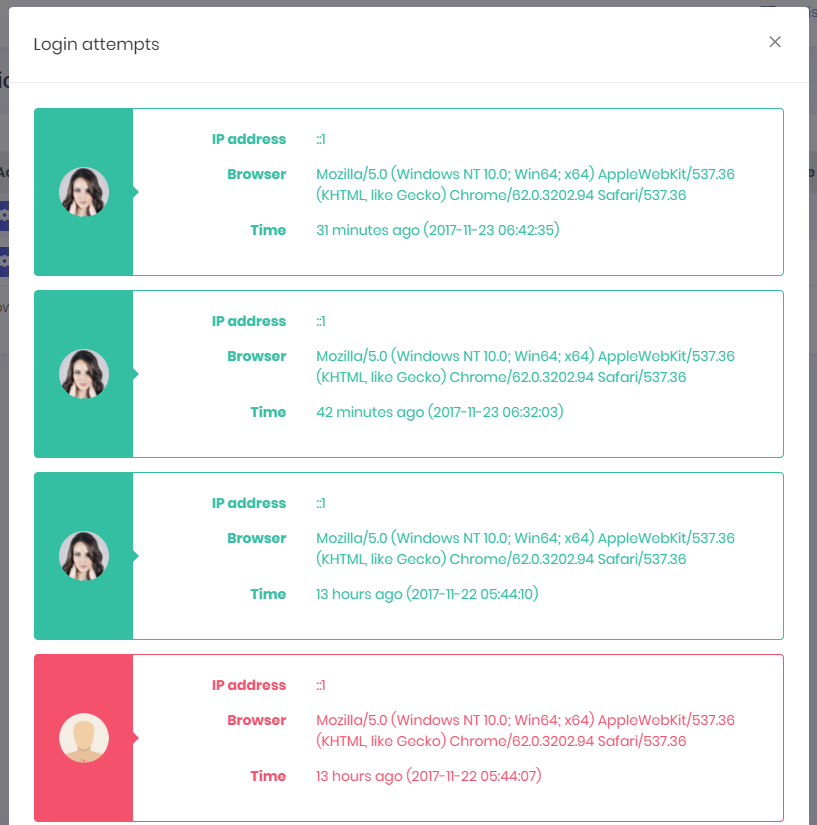
All login attempts (succeed of failed) are logged in the application. A user can see last login attempts for his/her account.
Change Picture
A user can change his/her own profile picture. Currently JPG, JPEG, GIF and PNG files are supported.
A user can also use Gravatar image for profile picture using change profile picture modal window.

My Settings
My settings modal is used to change user profile settings:
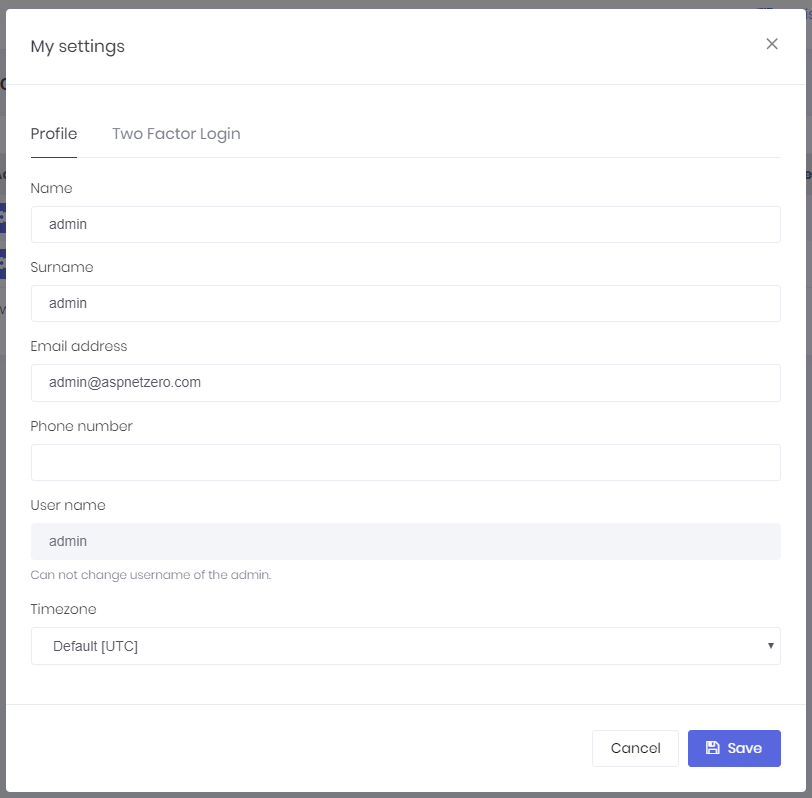
As shown here, admin user name can not be changed. It's considered a special user name since it's used in database migration seed. Other users can change their usernames.
Users can also validate phone number on this page. If phone number validation is enabled, a " Confirm " button will be visible when user enters a phone number into the phone number textbox. When the confirm button is clicked, a confirmation code will be sent to user's phone number (if sms sending is implemented.
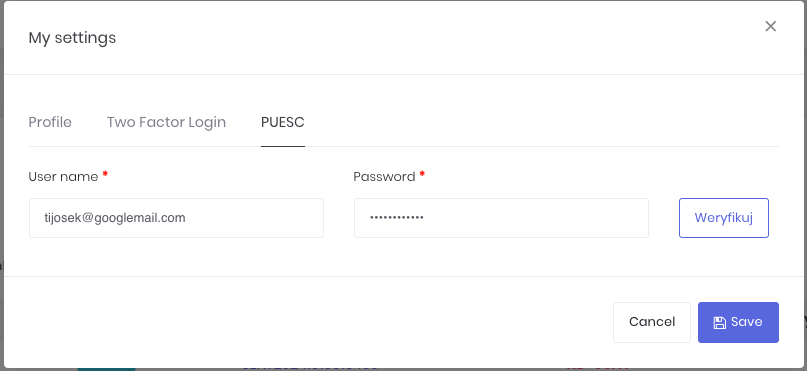
PUESC settings
Enter your PUESC credentials (email and password) here in order to enable message sendouts to PUESC.
Download Collected Data
A user can download his/her collected data using this menu item.
IntelliSent compress those files into a new zip file and sends it to user as a notification so user can download his/her data.
Logout
When the user clicks to Logout button, user's token is invalidated on the server side and removed from client side and the user is redirected to login page.