Tenant Settings
Tenant settings page is used to configure tenant based settings.
General

Under the general tab, each tenant can configure default time zone setting for users of that tenant. Each user of the tenant can also change this setting for their own account.
If tenant doesn't make any change, time zone setting of host will be used.
Appearance

Under the appearance tab, each tenant can upload a logo file and upload a custom css file. In this way, each tenant can change the look of the application only for their account. Uploaded logo and css files can be easily removed by using the clear button.
User Management
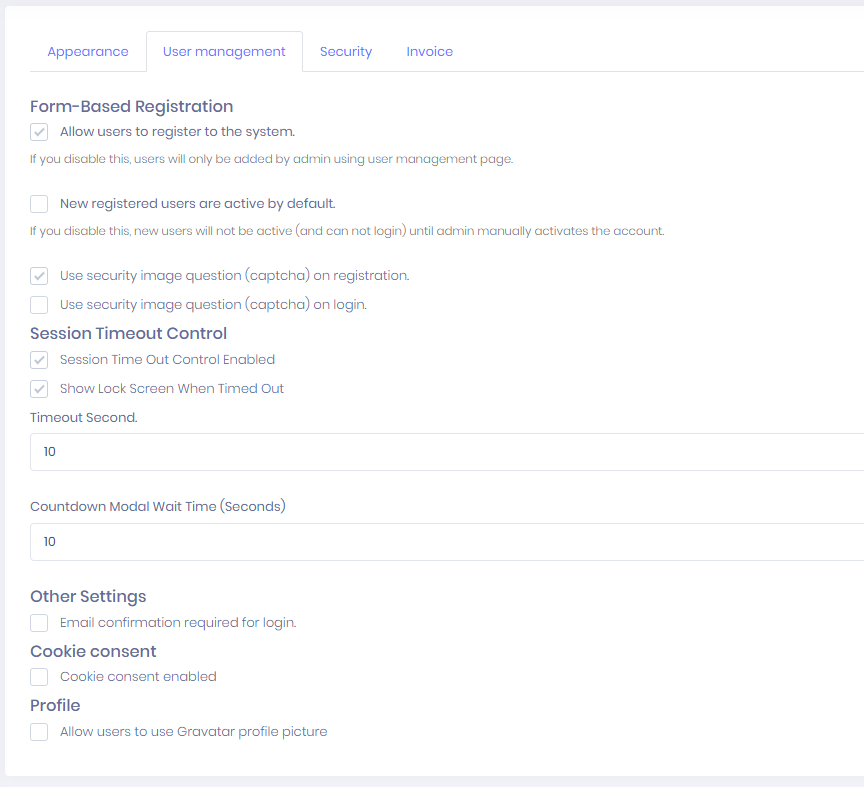
Under the user management tab, each tenant can configure some user management settings related to their account. Each tenant can enable/disable user registration for their account. Tenants can also make newly registered users for their account active or passive by default.
Each tenant can also enable/disable captcha on user registration and login page for their account.
Each tenant can also enable/disable session timeout control for tenant users. If it is enable and the user does not provide any input to the site during the timeout period, a countdown modal will be displayed to user. If the user still does not provide any input to the site during the modal countdown period, user will be log out.
Also, each tenant can enable/disable cookie consent so IntelliSent shows a cookie consent bar for the users of that tenant to accept cookie policy of the application.
Each tenant can force email confirmation for login.
Each tenant can allow tenant users to use Gravatar profile picture or not.
Security
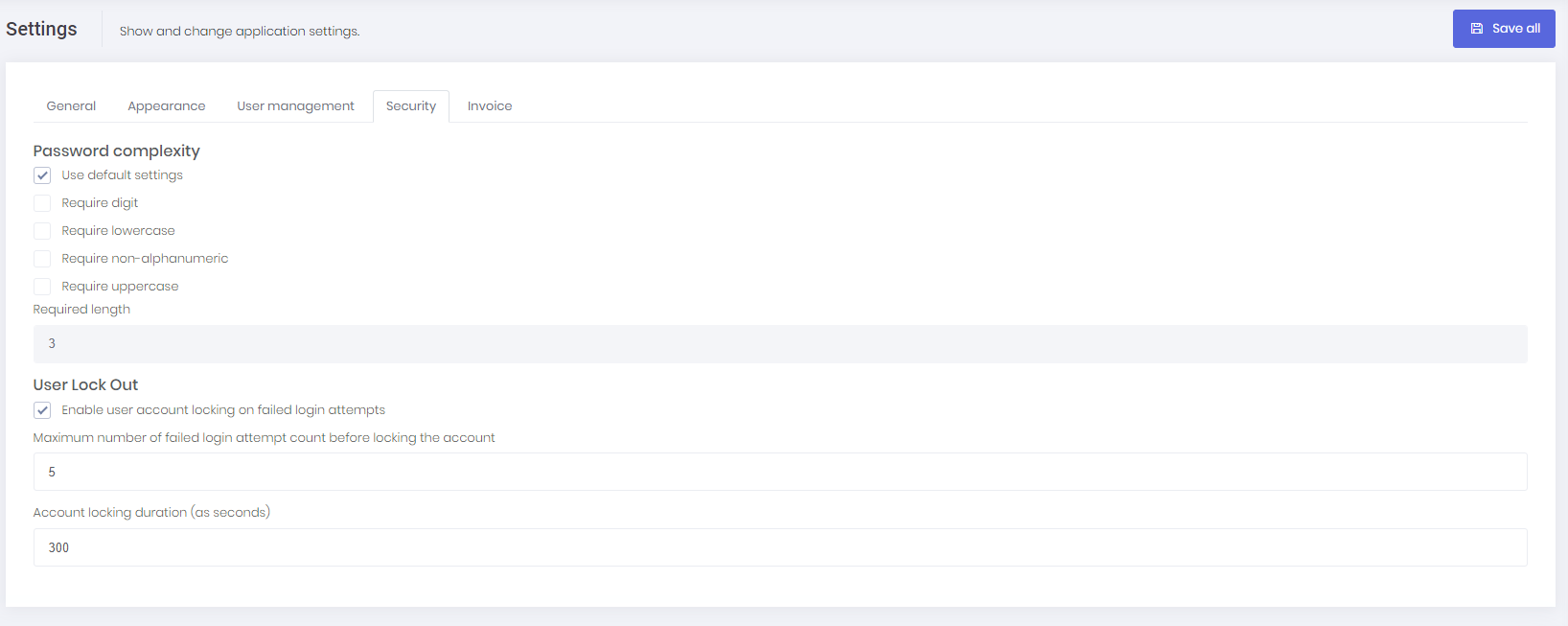
Security tab contains password complexity settings. Each tenant can define password complexity settings in this tab for their account. Each tenant can also configure user lock out settings.
Invoice
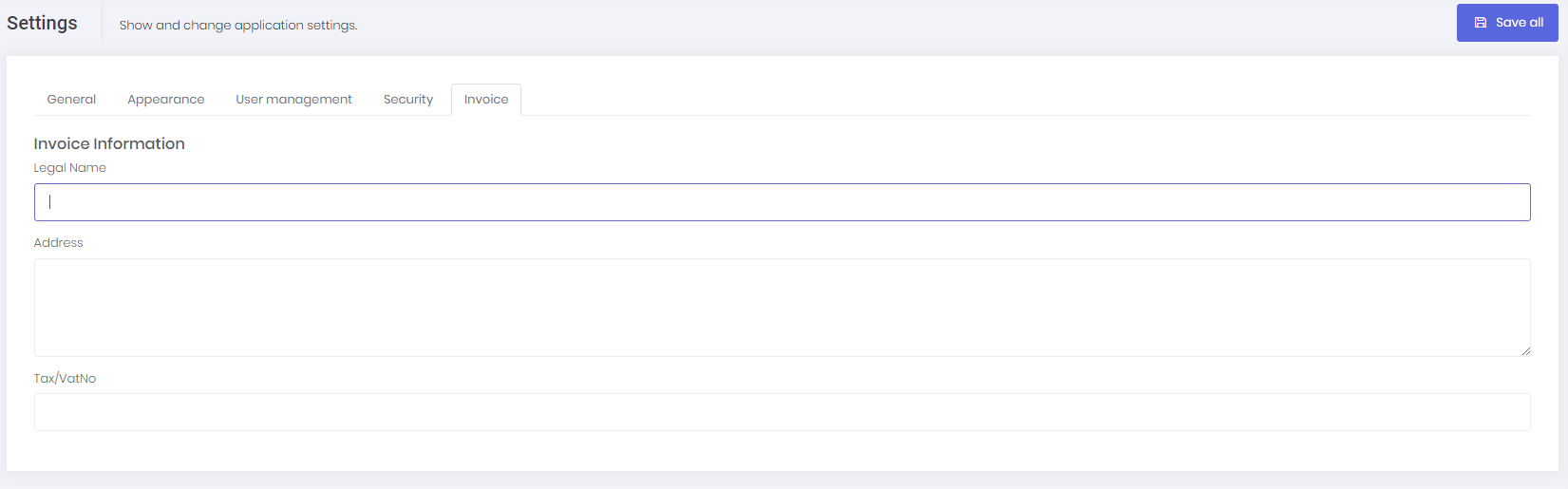
Under this tab, each tenant can configure their legal name, tax number and address which will be displayed on the generated invoices. Note that, tenants can only generate invoice if they made a payment for a subscription.
If we disable multi-tenancy, some host settings are also shown in this page (since there is no host setting page).
PUESC Settings

Overview
This page allows you to configure settings related to PUESC integration and user data management.
General Settings
Save All: Button in the top right corner to save all changes.
Navigation Tabs: General, Appearance, User management, Security, Invoice, PUESC
PUESC Configuration
Email Settings
[ ] Receive emails from PUESC
Return email address for PUESC emails: [Input field]
User Data
Company Details
[ ] Use tenant's company details for outgoing messages to PUESC
Login Data
[ ] Use the same PUESC login data for the entire organization (Exception: If your users have individual PUESC login accounts)
Additional Settings
Auto select source location (enter number with location ID): [0]
[ ] Allow capturing forwarder's additional email
Note: Ensure all settings are configured correctly before saving. Some options may have significant impacts on how your organization interacts with the PUESC system.